How to Use Warebnb
A visual guide to the platform for every user type. Last updated: February 2026.
1. Homepage & Search
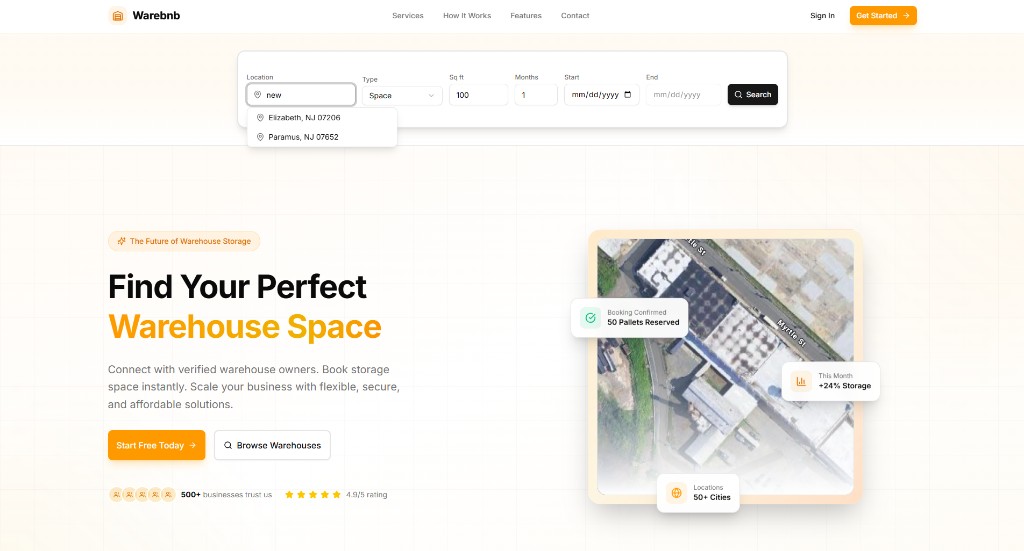
From the homepage you can search for warehouse space by location, type (Space or Pallet), square feet, months, and start/end dates. Use the main search bar or the "Browse Warehouses" / "Start Free Today" buttons. The hero section shows trust indicators (e.g. rating, number of businesses) and the map preview highlights booking confirmations and locations.
2. Find Warehouses – Results & Filters
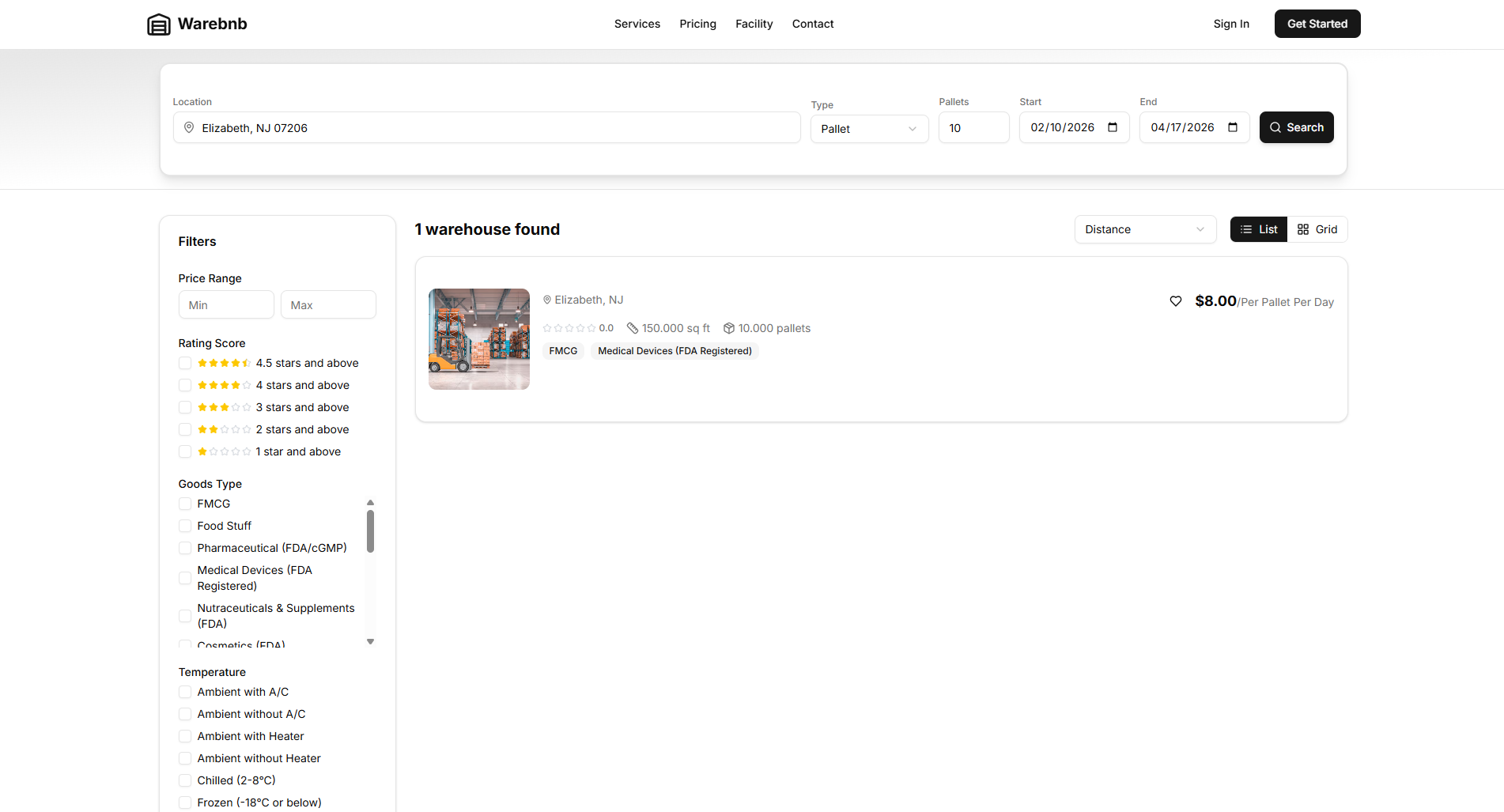
After searching, you see the Find Warehouses page: a top search bar (location, type, pallets/dates) and a Filters sidebar. Refine by price range, rating, goods type(e.g. FMCG, Food, Pharmaceutical, Medical Devices), and temperature (Ambient, Chilled, Frozen). Results can be sorted by distance and shown in List or Grid. Each card shows location, rating, sq ft, pallet capacity, goods types, and price per pallet per day.
3. Warehouse Detail & Booking Summary
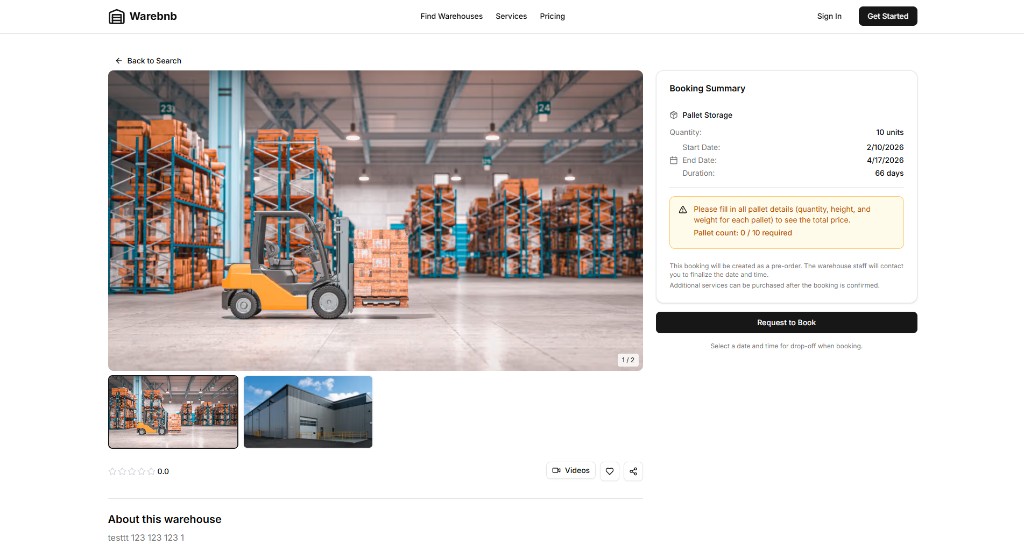
Click a warehouse to open its detail page. You see the image gallery, rating, and "About this warehouse". The right-hand Booking Summary shows storage type, quantity, start/end dates, and duration. You must fill in all pallet details (quantity, height, weight per pallet) to see the total price; until then a warning explains that pallet count is required. The booking can be created as a pre-order: warehouse staff will contact you to finalize. Use Request to Book when ready, and choose a drop-off date/time when booking.
4. My Organization – Teams & Members
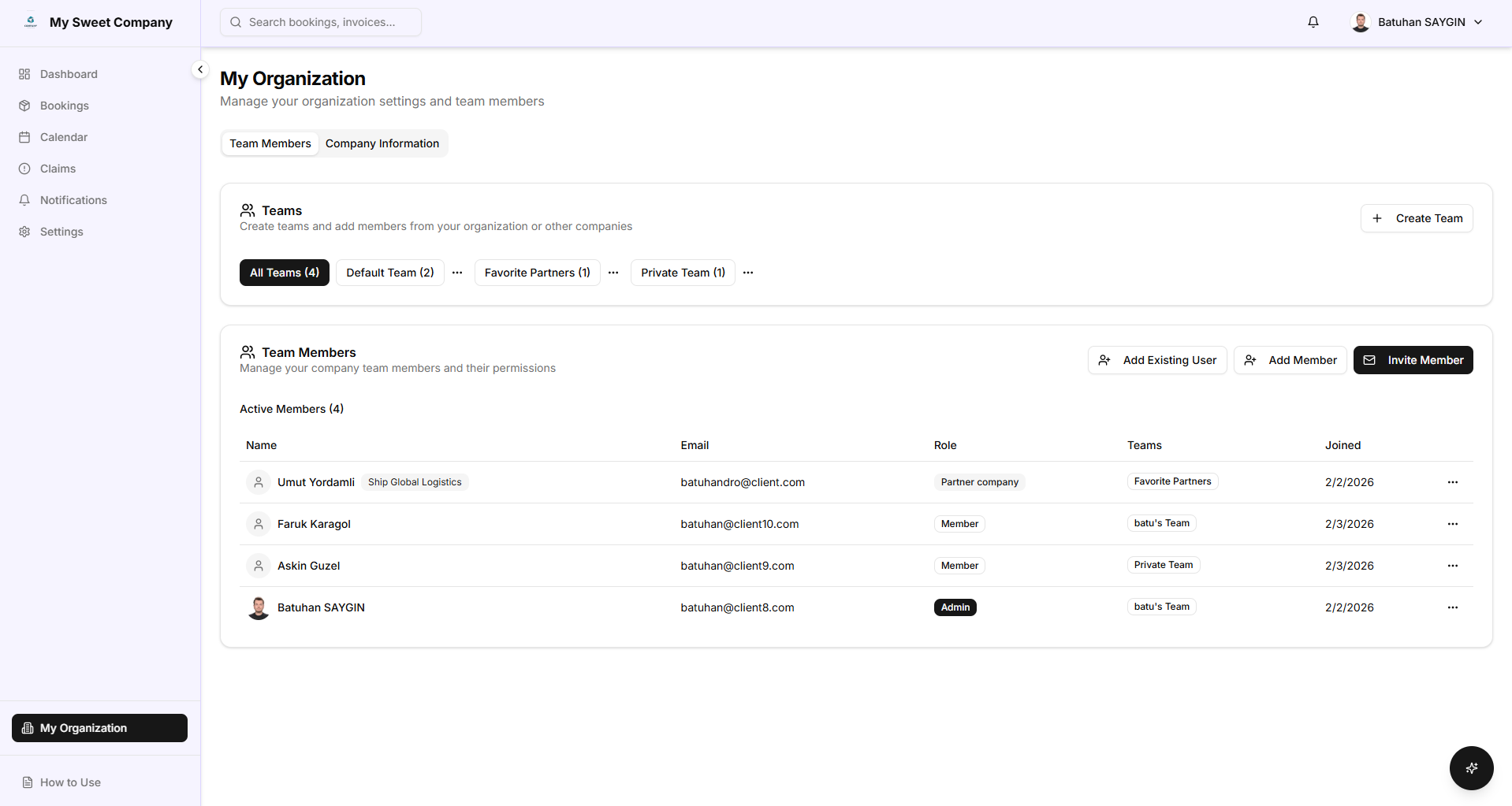
Corporate customers use My Organization (sidebar) → Team Members. In Teams, you see all teams (e.g. All Teams, Default Team, Favorite Partners, Private Team). Use + Create Team to add a team; use the ⋯ menu on a team to Rename or Delete team (default team and teams with admin members cannot be deleted until members are moved). In Team Members, add people via Add Existing User, Add Member, or Invite Member. The table shows Name, Email, Role (Admin / Member / Partner company), Teams, and Joined. Use the row ⋯ to Move to another team, Edit (for your own company members), or Remove.
5. New Booking – Who Is This For?
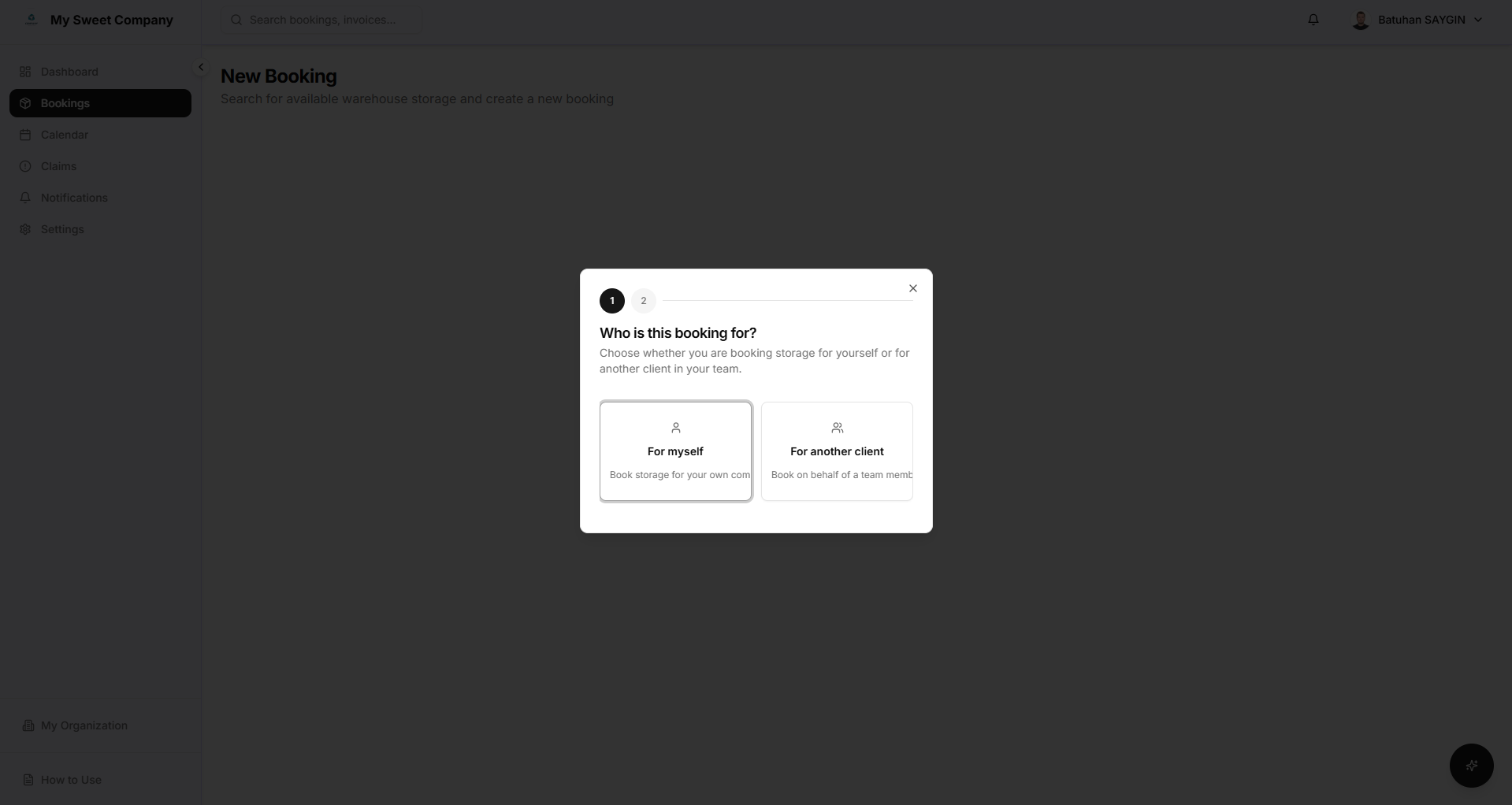
When you start a New Booking from the dashboard (Bookings → New), the first step is Who is this booking for? Choose For myself (book storage for your own company) or For another client (book on behalf of a team member). This decides whether the booking is under your account or requires selecting a client and optionally an approval flow (pre-approved vs requires approval).
6. Booking Request Details (On Behalf)
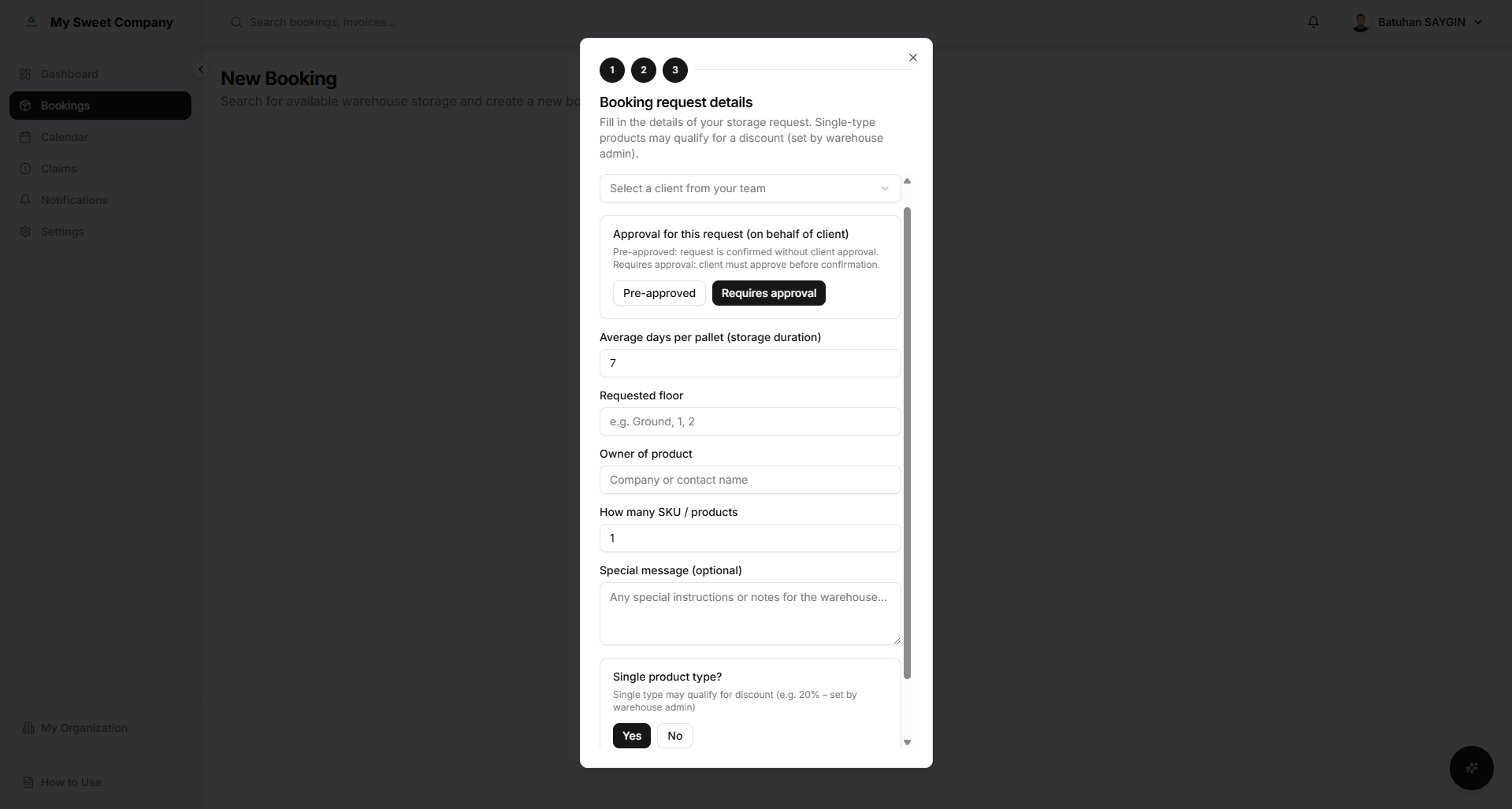
If you chose "For another client", the Booking request details form appears. Select the client from your team and set Approval: Pre-approved (confirmed without client approval) or Requires approval (client must approve before confirmation). Fill in average days per pallet, requested floor, owner of product, number of SKUs, optional message, and whether it is a single product type (single type may qualify for a discount set by the warehouse). Submit to create a quote request; the warehouse will respond with a quote.
7. Booking Requests
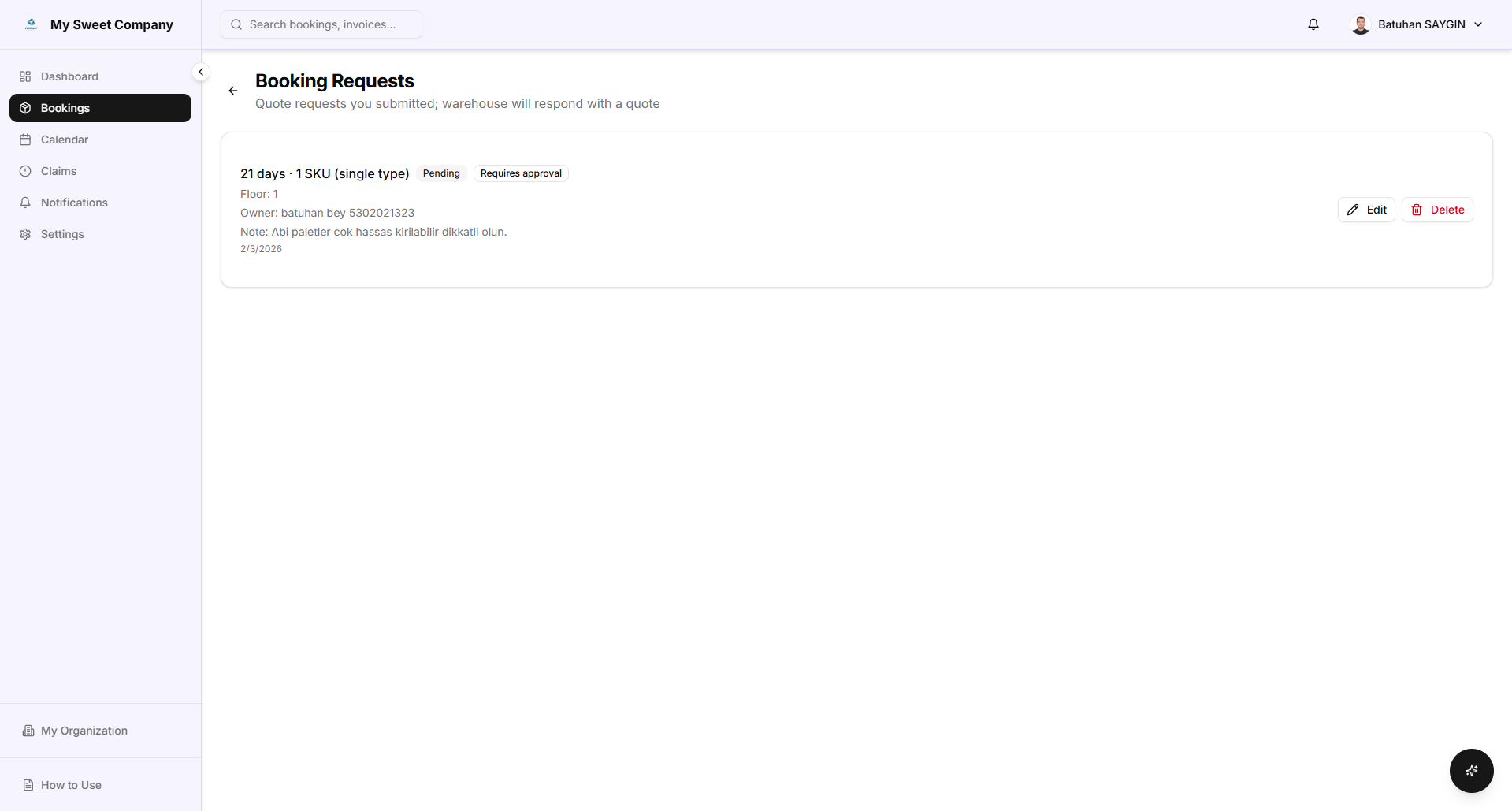
Under Bookings → Booking Requests you see quote requests you submitted. Each card shows summary (e.g. days, SKU count, single type), status badges (Pending, Requires approval), floor, owner, note, and date. Use Edit or Delete when allowed (e.g. company admin or requester). The warehouse responds with a quote; once approved, the booking can move to confirmation.
8. Booking Details
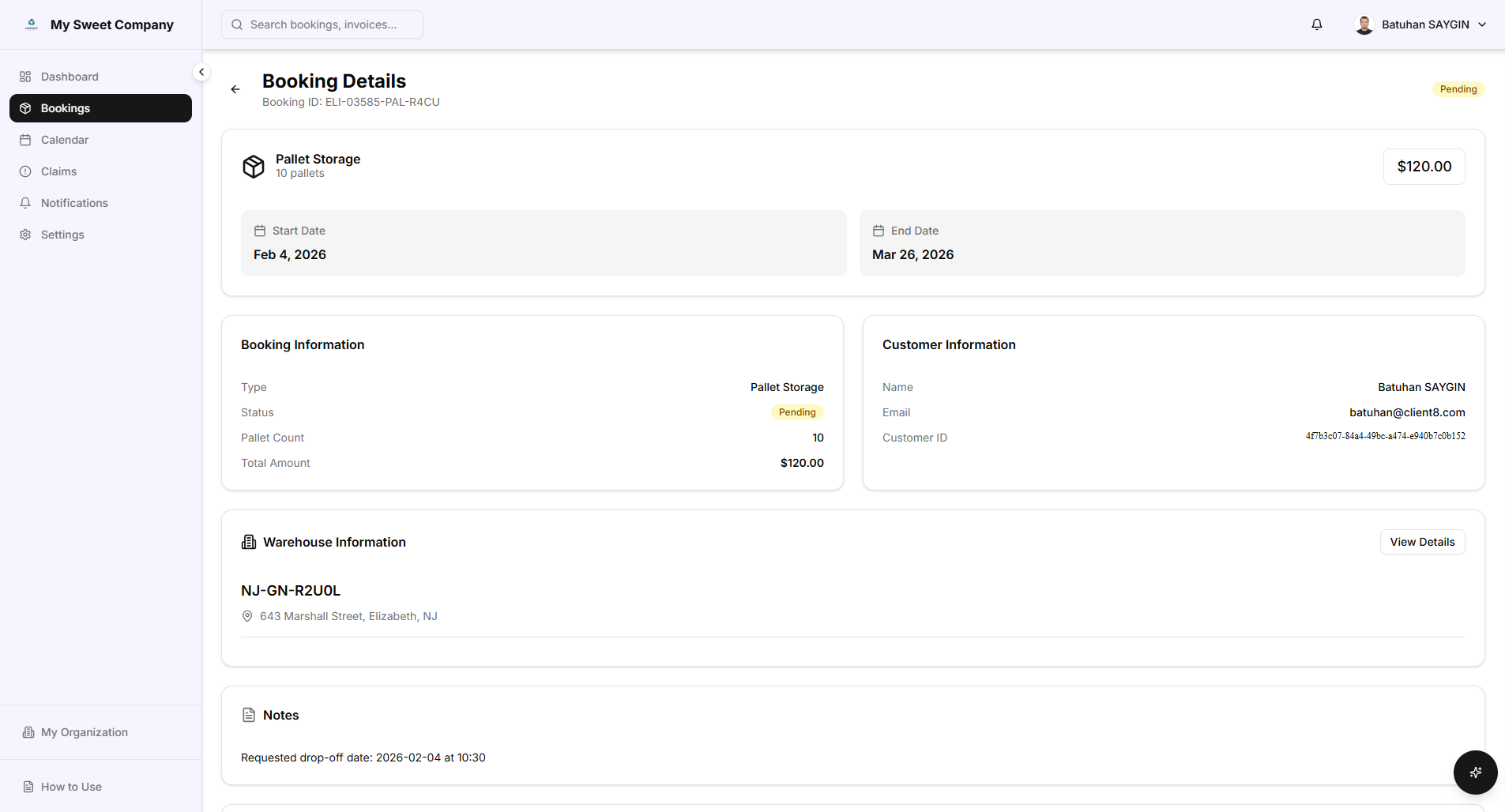
Open a booking from the Bookings list to see Booking Details. The page shows the booking ID and status (e.g. Pending). You see the Pallet Storage summary (quantity, price, start/end dates), Booking Information (type, status, pallet count, total amount), Customer Information, Warehouse Information (name, address, View Details), and Notes (e.g. requested drop-off date and time).
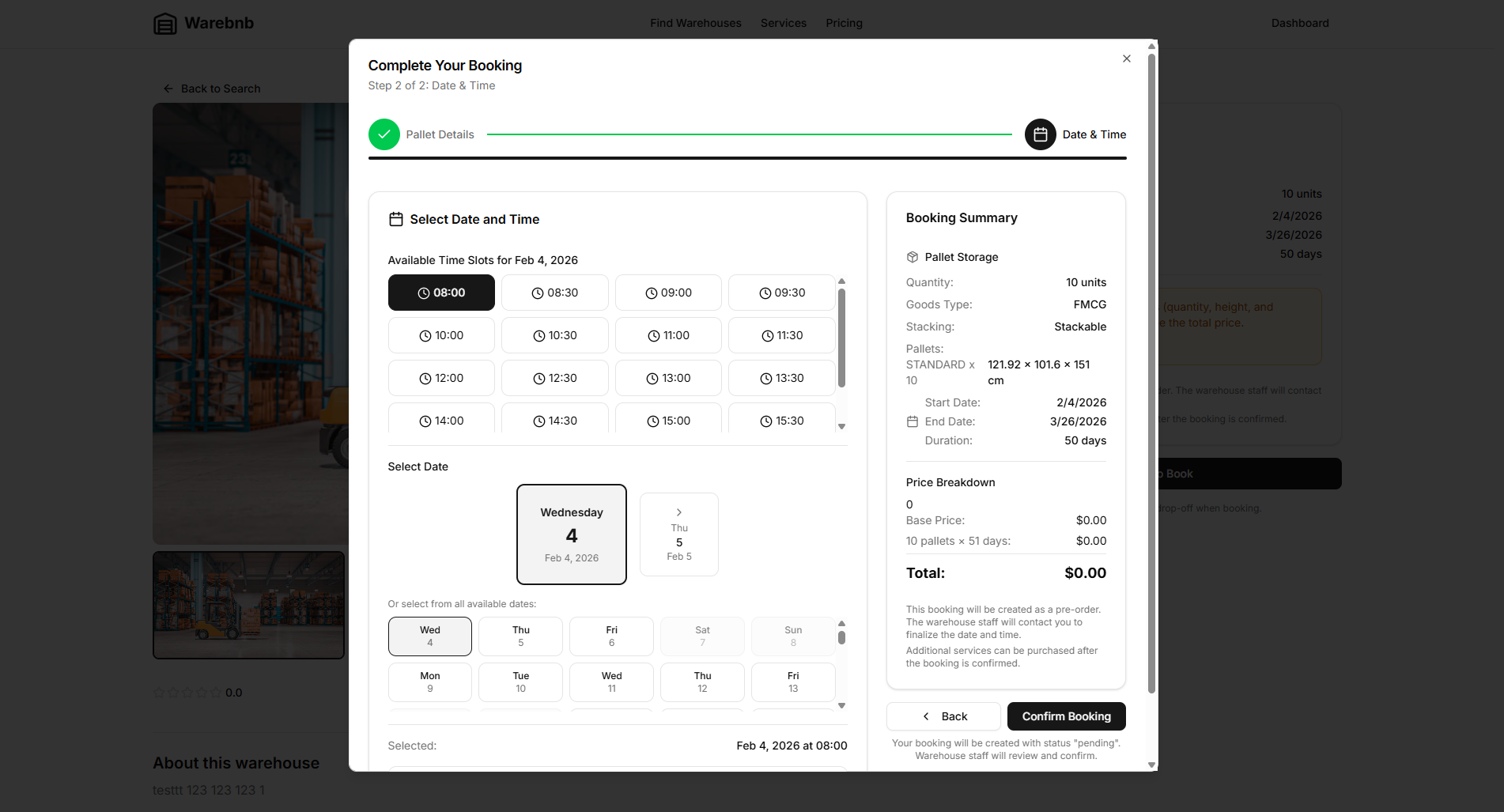
9. Complete Your Booking – Date & Time
When completing a booking, Step 2 of 2 is Date & Time. Select the date from the calendar and an available time slot (e.g. 08:00, 08:30). The right panel shows the Booking Summary (pallet storage, quantity, goods type, stacking, pallet dimensions, start/end dates, duration) and Price Breakdown. The booking is created as a pre-order with status "pending"; warehouse staff will review and confirm. Use Confirm Booking to submit.
User Types at a Glance
Customers (individual or corporate) search, request quotes, and book storage; corporate admins manage teams and can book on behalf of members. Warehouse owners/managers manage warehouses, services, bookings, and invoices. Warehouse staff use the same dashboard for operations. Warehouse finders use Map, Contacts, Visits, and Performance. Brokers manage Leads, Communications, and Proposals. Transport and end-delivery roles have dedicated dashboards for jobs, shipments, and documents.
For legal and policies, see Terms of Service and Privacy Policy. For questions, use the contact options on the homepage.